
Tip: Start typing in the input box for immediate search results.
0. Members and Users
Setup a member (organization)
Note: Members are the entities that are given permission to use the system. Only the super user can create a member, and the main admin role for the member. Then the admin can create the users and setup the data for the member. Also, the roles for the users are predefined by implementers as a master data setup by the super user.
Step:1: Navigation (To edit the member profile as an admin users )
My Bruce Settings -> “My Member profile ”
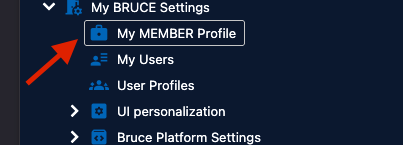
Step 2. Editing the member profile
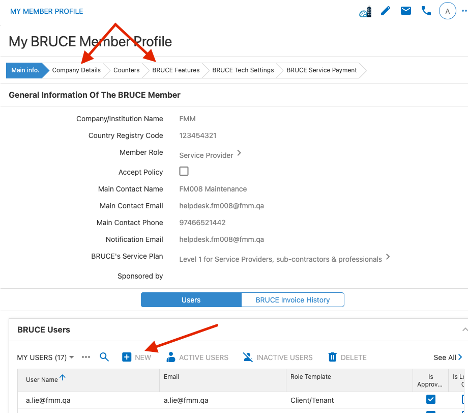
In my member profile, click the tab you want to edit the content.
0.1. setup Member Profile
0.2. setup User’s Profiles
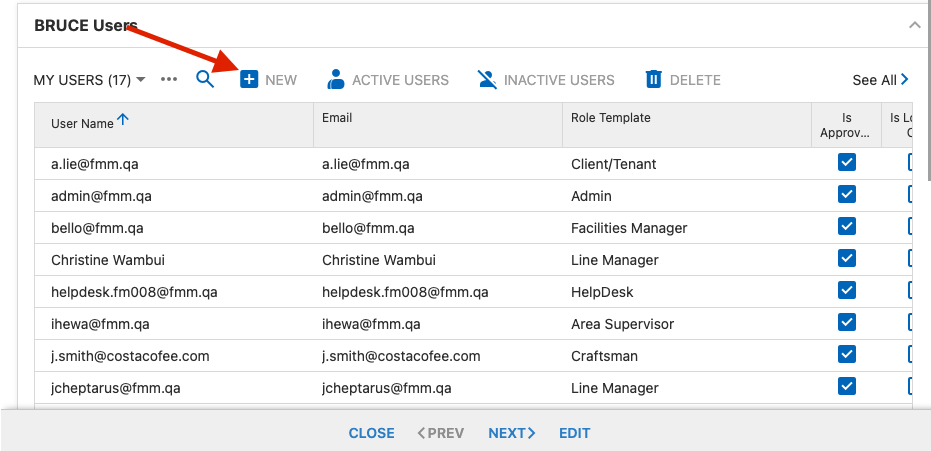
To add users for the member, click new in the BruceBEM Users. .
Add details for the user in the pop up, “My Bruce Member Profile” screen then click “Save”
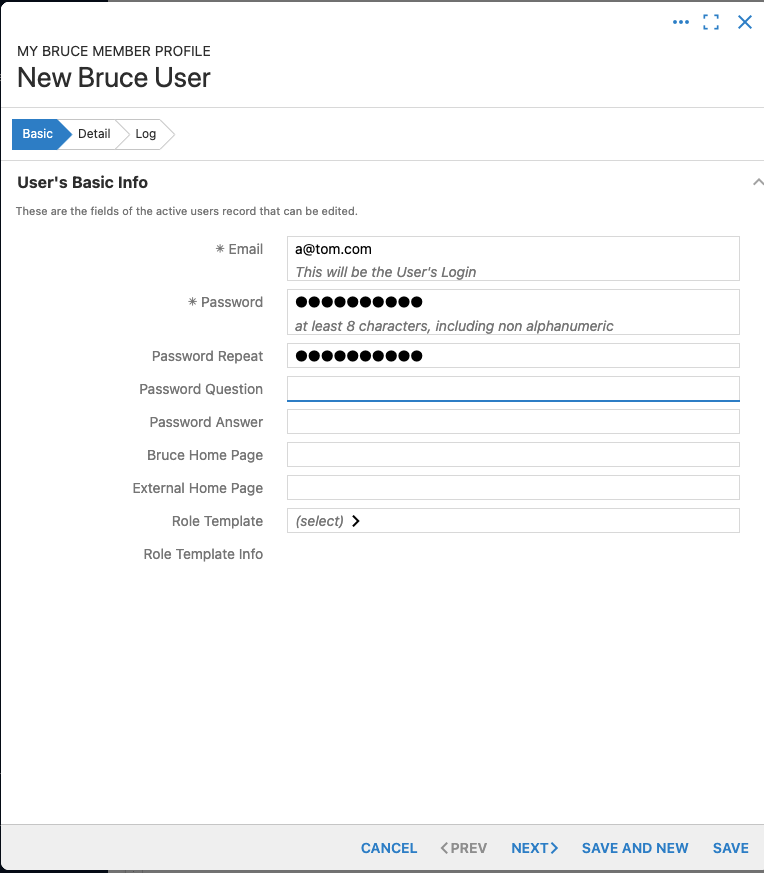
In the second, user details screen, add the role and then configure the UI for the user
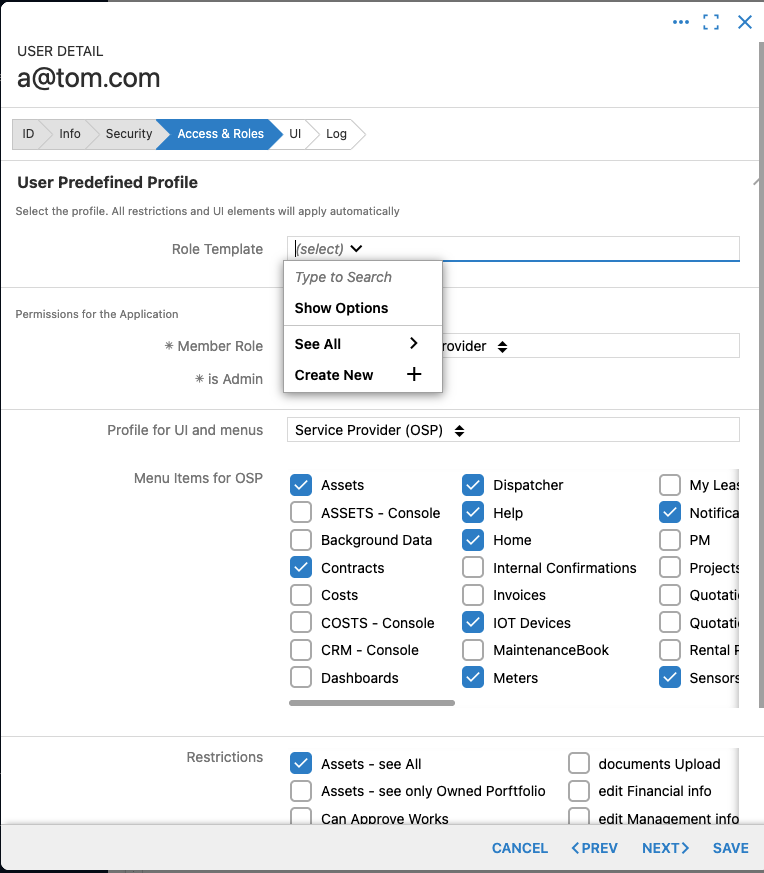
0.3. setup User Interfaces
Click the UI tab to edit the UI for the user then click the form to edit. Most of the fileds in BruceBEM can be either hidden or made read only.
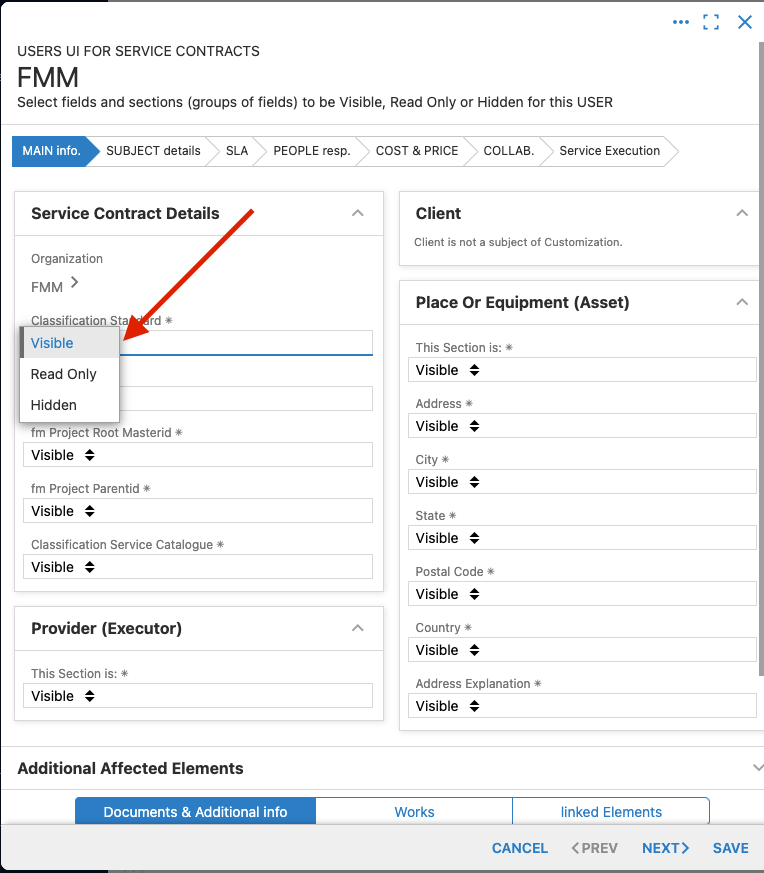
0.3.1. Corporate UIs
To set up the UI for the member level follow the below steps
Step:1: Navigation
My Bruce Settings -> “UI personalization ”->assets UI for Organization
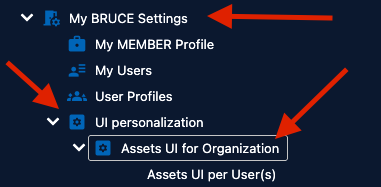
To setup the UI for roles select “Assets UI for Roles”. Then in the “Assets UI” or Roles screen select the role you want to setup the UI. Then the fields as required.
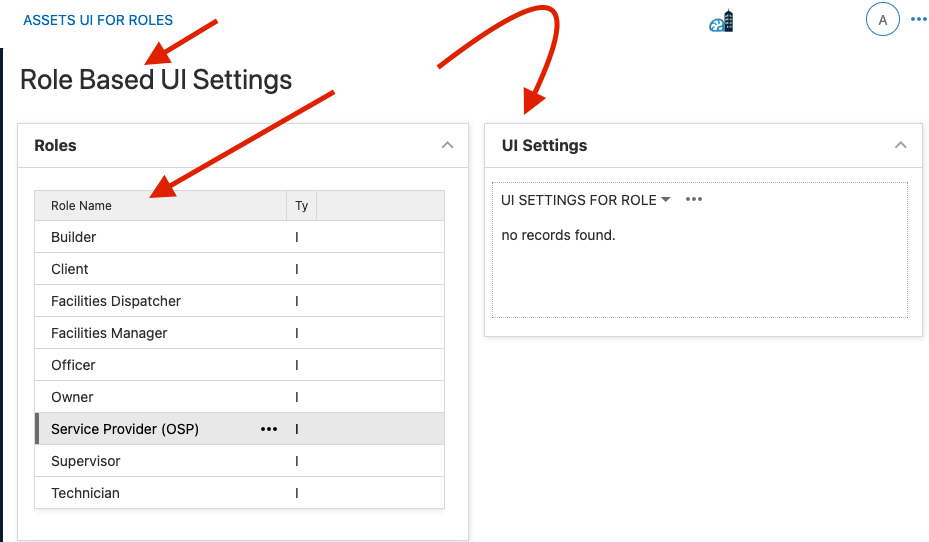
To setup the UI for individuals user select “Assets UI per Users”