
Tip: Start typing in the input box for immediate search results.
Members & Smart-Contracts
In BruceBEM, the “My Clients” section displays only those partners who have been explicitly marked as clients. This ensures that the list remains organized and relevant by showing only active client relationships. Partners must have a valid Bruce Smart Contract partnership and be designated as clients within the system to appear in this section. This feature helps in efficiently managing client interactions, assignments, and business operations within the platform.
My Partners section displays all entities with whom you have an established Bruce Smart Contract partnership. This list includes businesses, suppliers, or collaborators that are officially linked to your account. Only verified partners with an active contractual relationship will appear here, ensuring secure and efficient management of partnerships, assignments, and business interactions within the platform
To create a partner as a client or subcontractor, follow the steps below:
Step 1: Navigation
Background Data -> “My Partners”
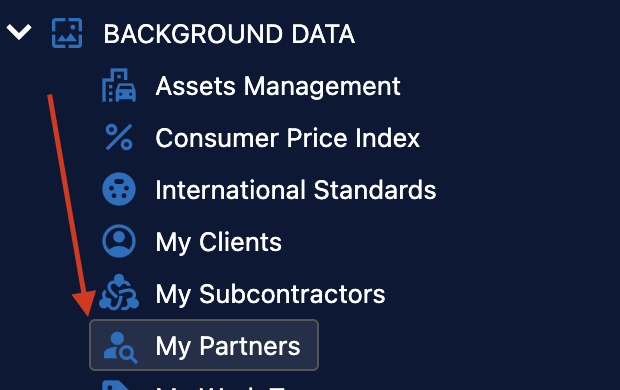
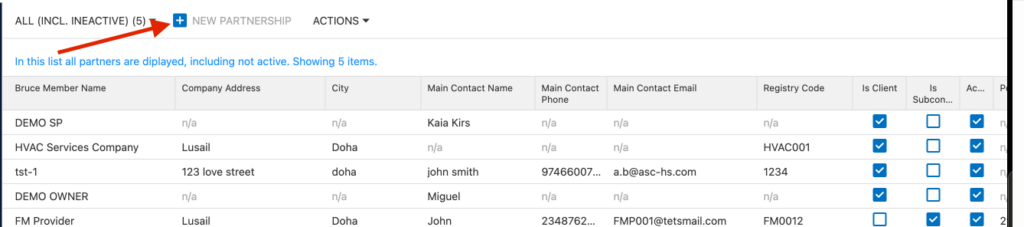
Step 2: Create new partner(Client or subcontractor)
In the “My Partners” screen, click “New partnership”
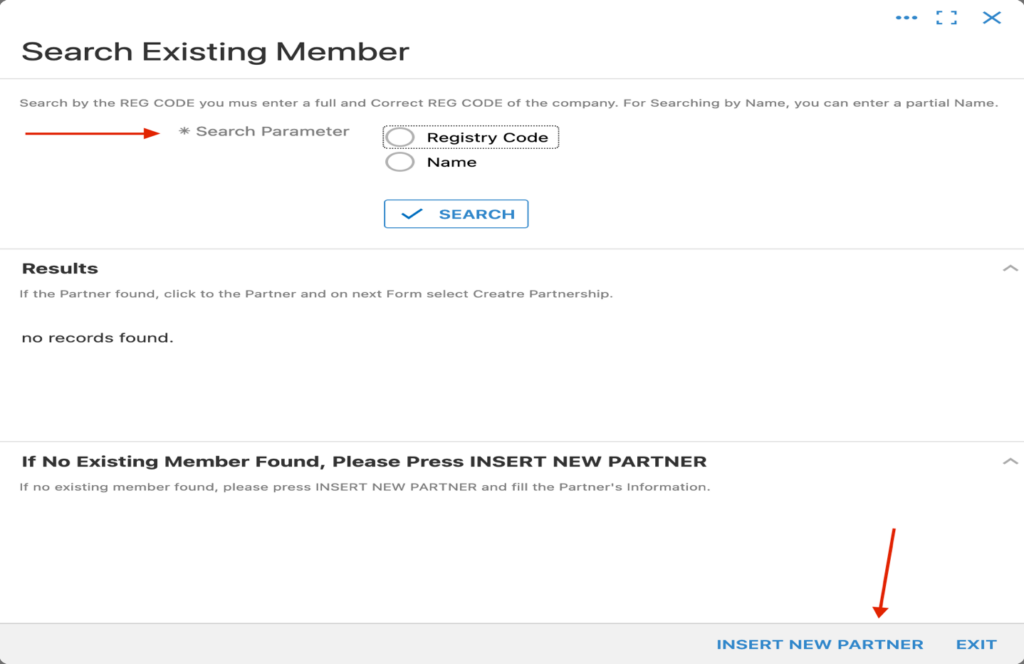
Step 3: Search Screen Configuration
In the pop-up:
- Select the field to use for searching of the partner already exist in the system. (e.g., Registration Code or Member Name).
- If the partner does not exist in the system, Click “Insert New Partner.”
Step 4: Details of the partner
In the “General Info” screen:
- Provide the partner’s details, including Name, Contact Email, Work Notification Email, and Contract Phone Number.
- Specify whether the partner is a Client or a Subcontractor.
- Enter the Address of the partner.
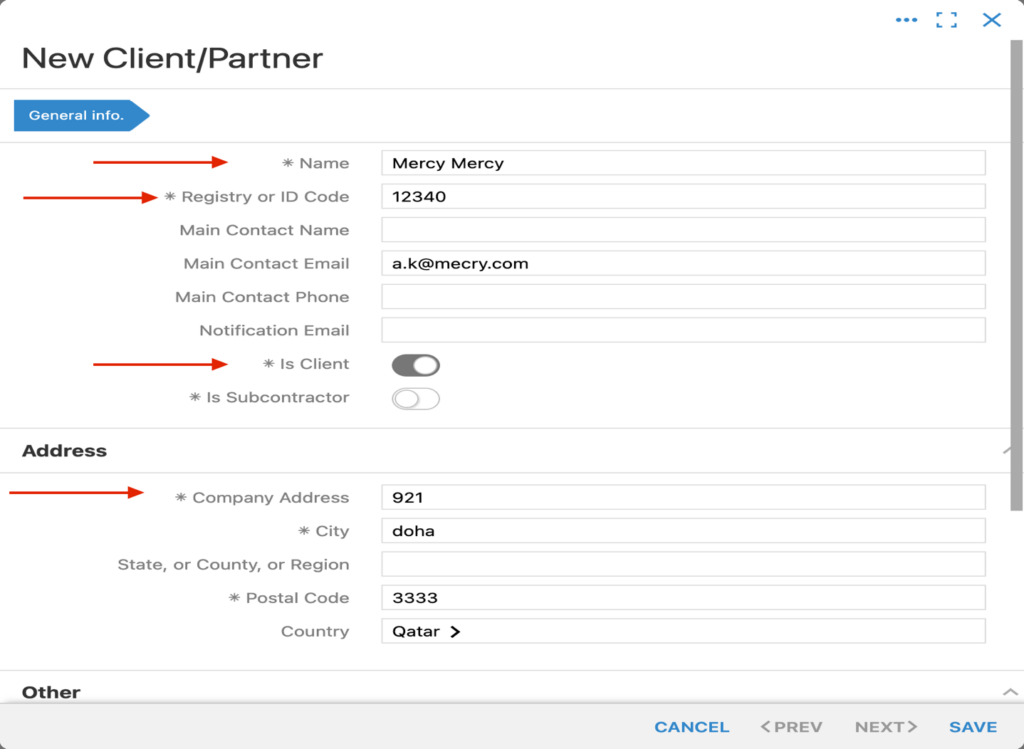
Click “Save” to create the partner.
Note, From this point, follow the instructions from “Step 3: Provide User Info” above to complete the new user creation process.