
Tip: Start typing in the input box for immediate search results.
Working with Quotations – Cost and Price
In BruceBEM, a quotation can be created to provide an estimated price for a Work Request.
- Cost: The amount of expenses that the service provider incurs to complete the job.
- Price: The amount charged to the client for the service performed by the service provider.
To create a quotation, follow the steps below:
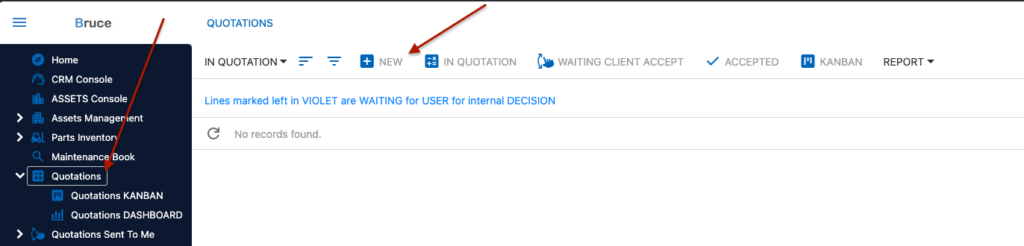
Navigate to the quotation section, and select the option to create a new quotation document:
Click – Quotations New
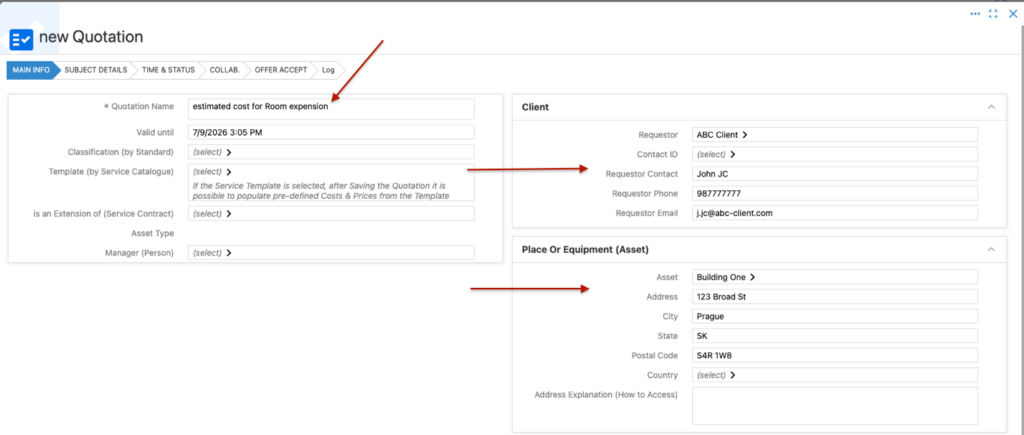
Fill in the required information:
- Quotation Name: Enter a descriptive name for the quotation.
- Requestor Details: Provide the details of the requestor, including their name and contact information.
- Asset Details:Specify the asset related to the work request.
- Cost and Price Entry: Click “Save” to add the cost and the price.
Note: If the service provider does not wish to share their cost with the client, only the price of the service will be recorded, and the cost will not be added.
- Client Billing Information: Fill in the details of the client to whom the price will be billed.
Click – “Save” to add the price”
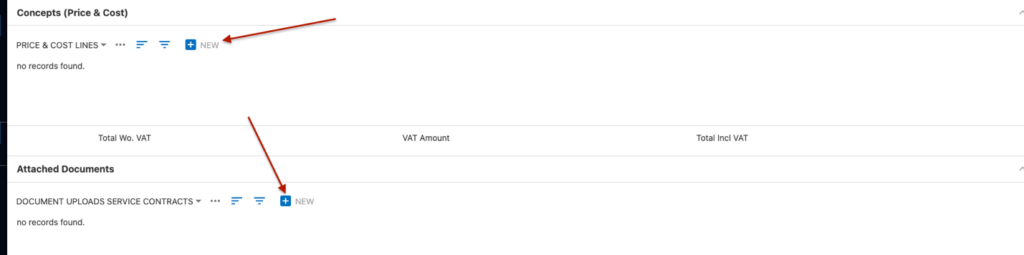
Fill in the required information:
- Name: Enter a descriptive name for the price item.
- Unit Price: Specify the price per unit (e.g., price per day).
- Quantity: Fill in the quantity, which can represent the number of days or units required for the service.
- Save the Quotation: Click “Save” to add the price to the quotation.
- Share for Approval: The quotation can now be shared with the client for approval.

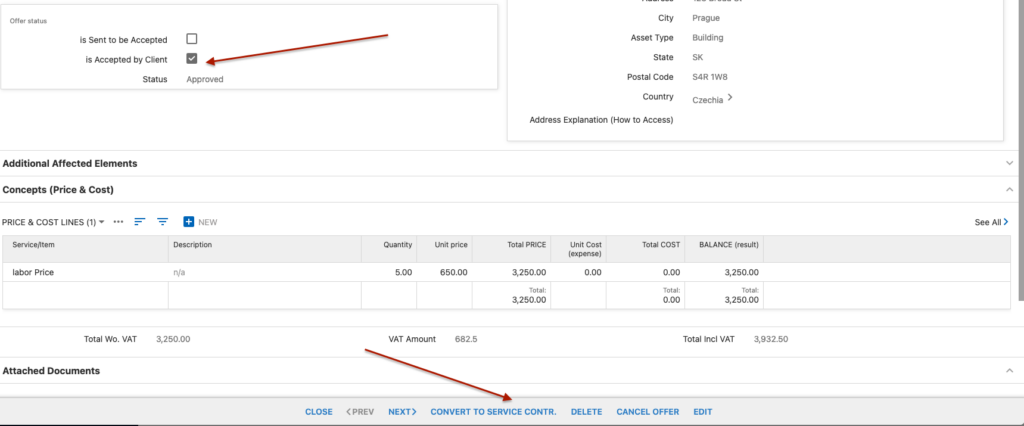
The client has the option to edit, cancel or approve the quotation.
After the client approval the quotation can be converted to “Service Contract”
Click quotation Accepted.
To see the approve quotation by the client. Then client “convert to Service request”.
Now, the work request can be related to the approved quotation by following these steps:
- Link Work Request to Service Contract:
- Add the work request to the service contract that was created based on the approved quotation.
- Multiple Work Requests:
- If there is more than one work request associated with the estimated price, all of them can be added here.
- Management of Work Requests:
- Track and manage all linked work requests efficiently within the service contract.