
Tip: Start typing in the input box for immediate search results.
Working with Works & Tasks
1. Works
There are three types of Work Requests in BruceBEM: On-demand work, planned work and committed work.
1.1 On-demand Work
On-demand work request refers to a task or service initiated spontaneously by a user or customer, typically in response to an immediate need or issue. Unlike scheduled or preventive maintenance, on-demand work is reactive and occurs as needed to address specific problems or requests:
To create an on-demand work follow the step below:
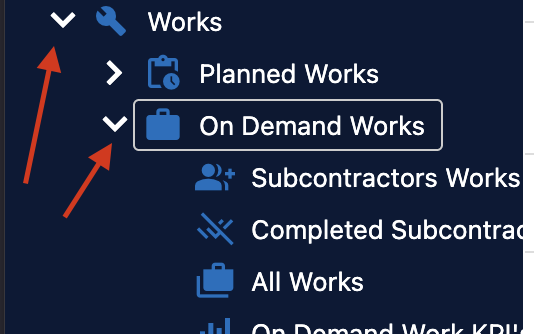
- Navigate to the “Works -> on Demand Work” in the main menu
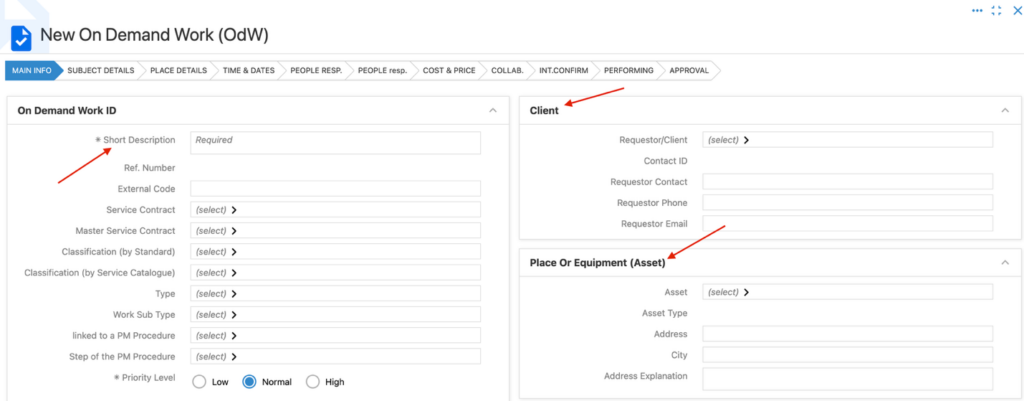
- Click new in the “On Demand Works” screen, and fill all the necessary info for the work request. Such as the description, the work type, the client/requestor and the asset info.

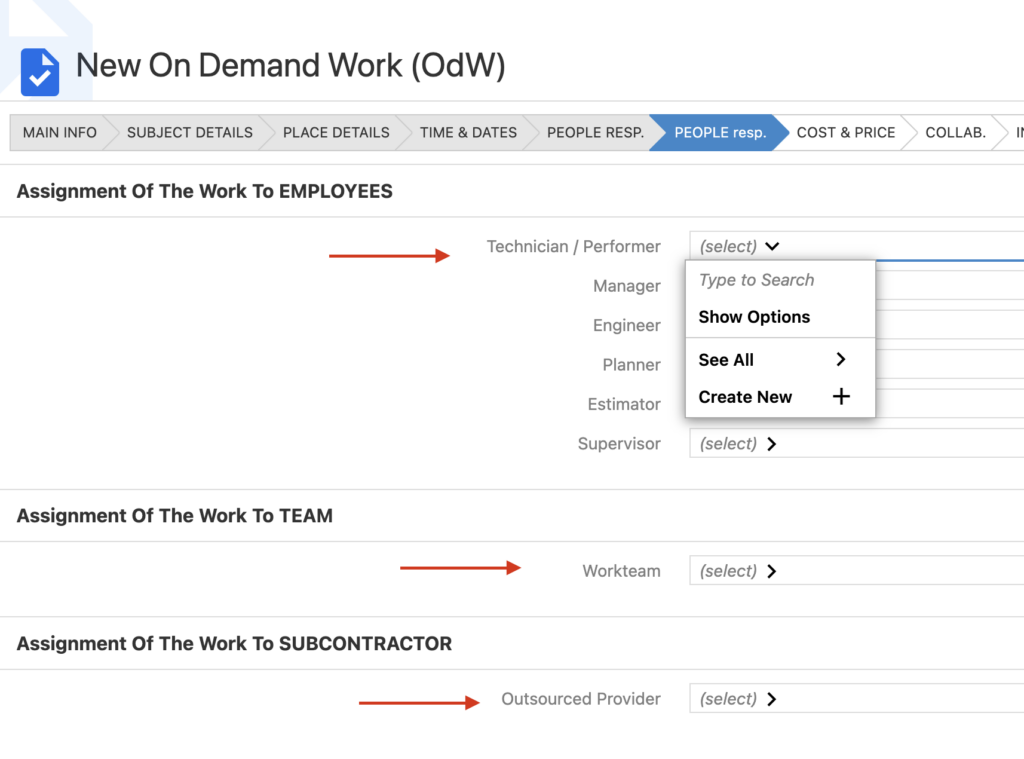
- Assign the work to a craftsman, work team or to a subcontractor for the execution.
- Click “Save” to create the “Work Request“
1.2 Planned Work (PM)
Preventive maintenance (PM) is a proactive approach to maintaining equipment, systems, or facilities through scheduled inspections, servicing, and repairs. The goal is to prevent unexpected failures, extend the lifespan of assets, and ensure smooth operations. And the benefits of the PM is to increase reliability, safety , efficiency and reduce the downtime of the asset.
To create a planned work for an asset follow the below steps.
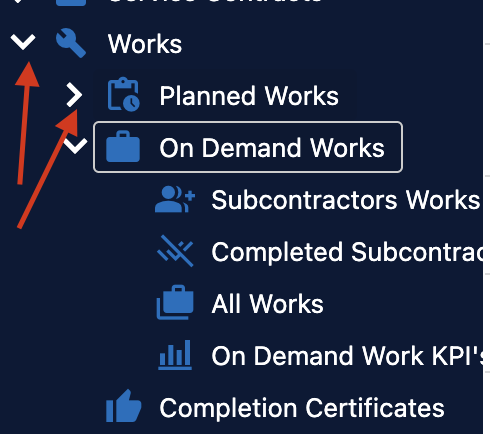
- Navigation: Works -> Planned Work in the main menu
Click new in the “New” in the planed work screen, then fill all the necessary info for the planned work, such as the asset time, work description, the PM procedure and the responsible team for the execution.you can also add an SLA and the frequency to perform this task if it is monthly, annually etc…

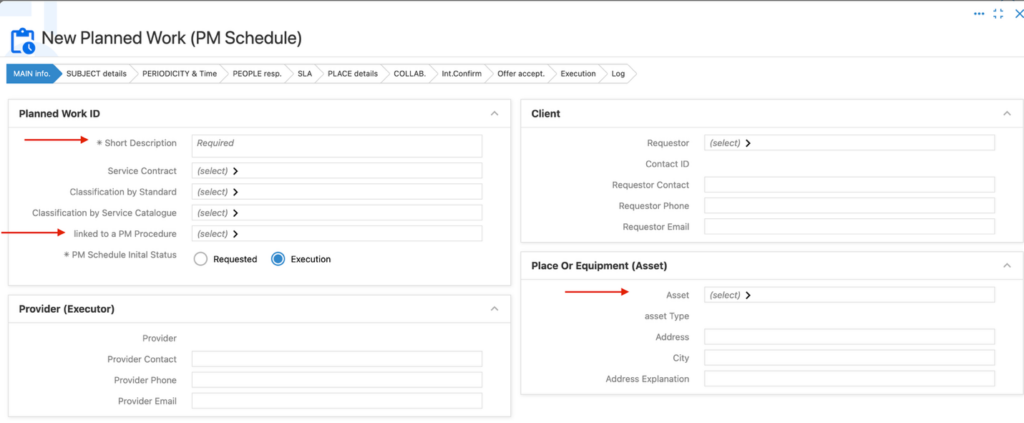
- Click “Save” to create the “PM Work Request”
Committed work
sadsdsa
2. Task
A maintenance task is a specific activity or set of activities carried out to maintain, repair, or service equipment, systems, or facilities. It is part of a maintenance program aimed at ensuring assets operate efficiently and reliably. Tasks are created automatically when the dispatcher assigns the Work Request to team, but can be manually created as well.
To create a “Task” follow the below steps.
- Navigate to the “Task” in the main menu
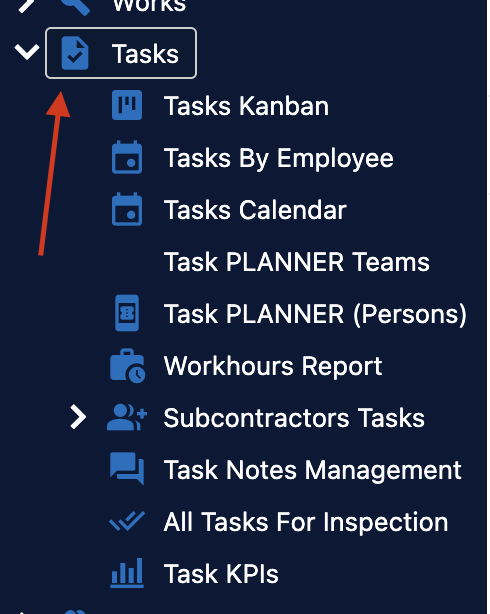
Click “New Task” in the Tasks screen, then fill all the necessary info to the Task creation, such as the subject, the asset info and assign to employee, work team or subcontractor.

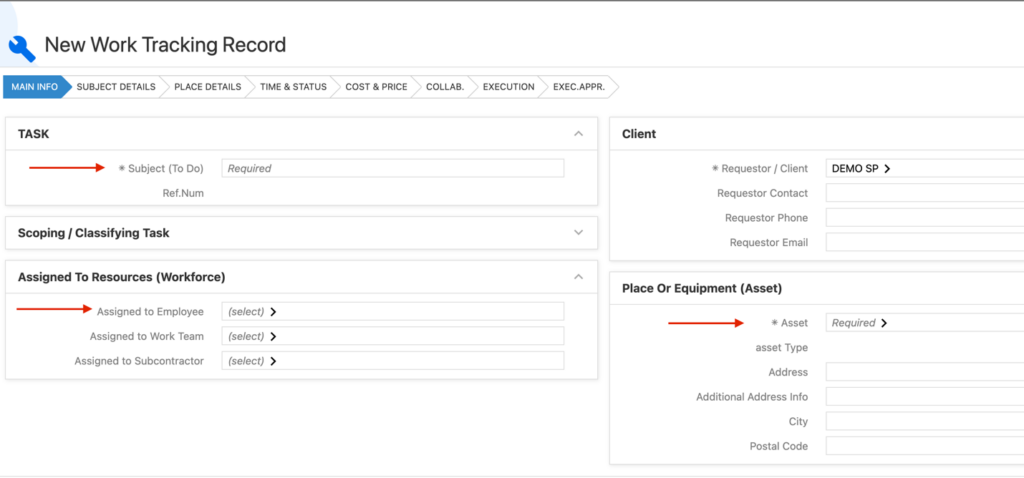
Click “Save” to create the “Task” record.